Four steps, and the drive stays locked
Cryptnook Vault turns an empty USB drive into an encrypted vault. With your password it opens on Windows and Android; without it, what is inside cannot be read.
From an empty drive to your vault
Plug in the drive
On Windows, the app detects it as soon as you plug it in. On Android, with a USB-C drive or an OTG adapter, the phone asks which app should open it.
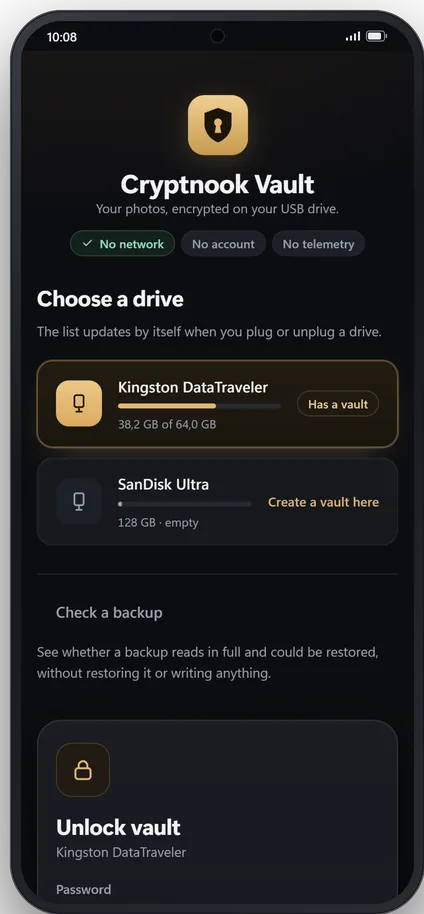
Create the vault
On an empty drive, choose a long password and the vault takes up the whole drive. The password is not stored anywhere: it is the only key.
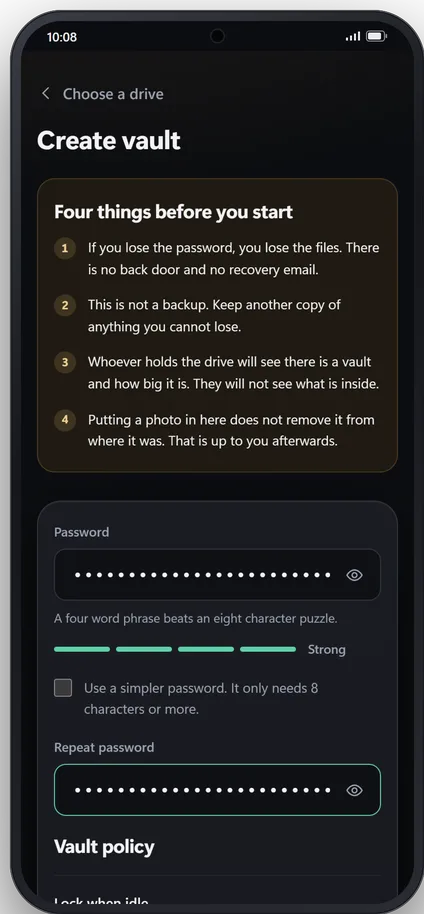
Add what you want to keep
Drag whole folders on your computer, or use “Save to Cryptnook Vault” from the Share menu on your phone. Everything is encrypted on your device before it is written.
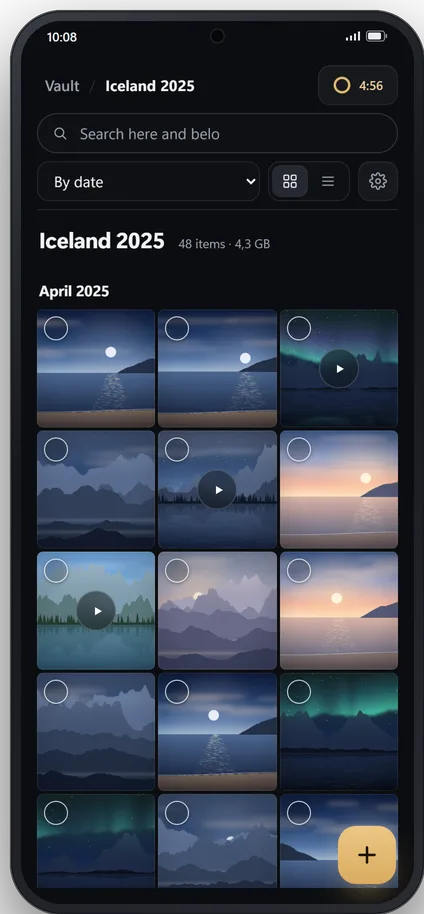
Lock it and unplug it
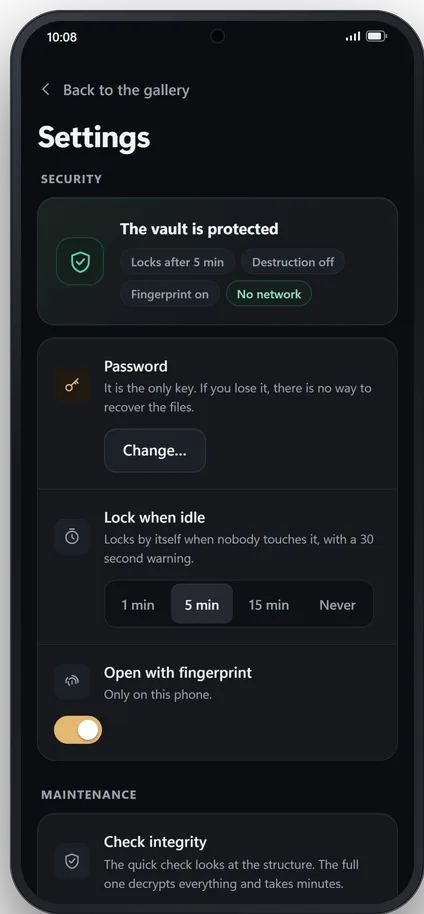
Locking wipes the key from memory, and if you forget, it locks itself. If you yank the drive out, the vault is not damaged: at most, the last thing being saved is lost.
What is on the drive gives nothing away
If you open the drive in your file manager, you will only see a few files and a folder of chunks with meaningless names. This is what they are:
Whoever finds the drive will know there is a vault and how big it is. They will not know what is inside.
The same vault on your computer and your phone
Both apps read and write exactly the same format. A vault created on your PC opens on your phone, and the other way round, with no conversion.
This is not just a promise: every change to either app is tested against reference vaults created by the other one, with accented and emoji names, empty files and huge files.
By default, the vault is created with the compatible profile, the one that opens on phones. If you will only use it on a PC, you can choose a profile that is harder to attack but that a modest phone may not be able to open, and the app warns you when you pick it.
A gallery, not a file manager
What you keep here is mostly photos and videos, and the app is built to make viewing them comfortable.
Thumbnails and dates
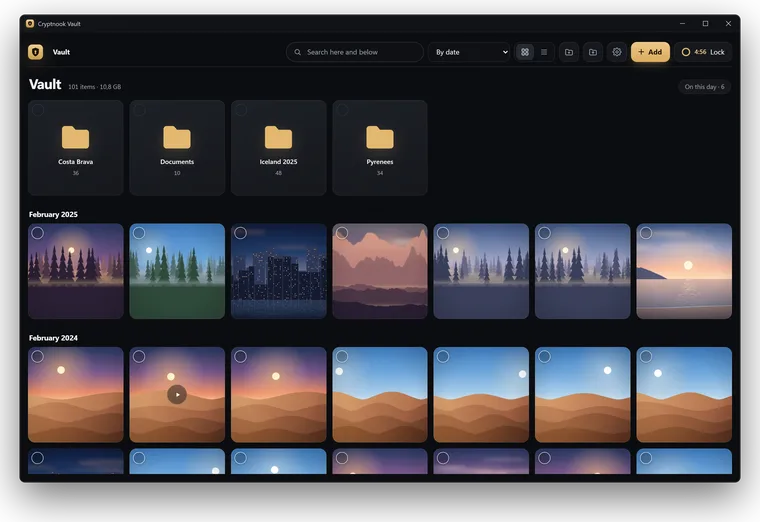
A grid with a thumbnail of every photo, sorted by the date it was taken, with “On this day”.
Video without waiting
A built-in player that jumps to any point without writing anything decrypted to disk.
Photo enhancement
More sharpness, light, colour or resolution, offline and in a new copy. On Windows, with a more powerful model.
Compare and find duplicates
Compare two photos to keep the good one, or look for repeats.
Documents and PDF
Keep your ID, contracts or key backups, and read PDF files inside the app.
Folders and search
Organise it your way and find things by typing.
Tags
Give each photo or document the tags you want, on top of its folder.
Bin
What you delete waits seven days, or the period you choose, in case you change your mind.
Backups
Back up the vault, check that the backup can be restored and get a reminder to do it.
Want to know how what you keep is protected?
See security