Guide
How to encrypt a USB drive on Windows and Android
How to password-protect what you carry on a USB drive and open it on both your computer and your phone.
Updated on 22 November 2026.
The short answer
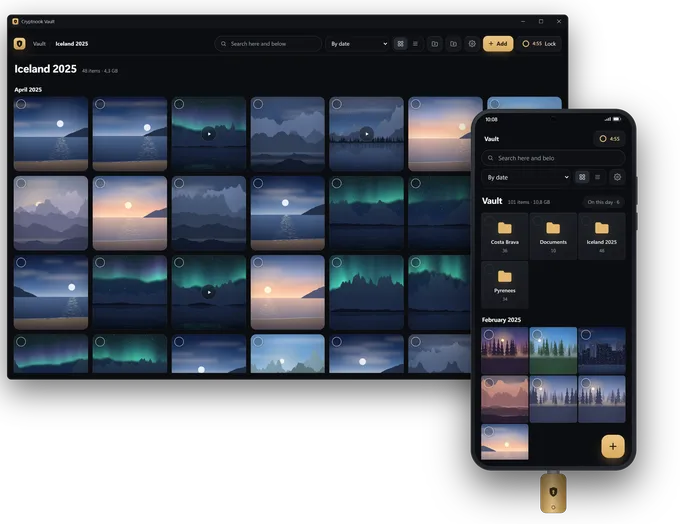
If you want the same drive on your computer and on your phone, the usual options fall short: BitLocker does not open on Android, VeraCrypt has no official mobile app and Cryptomator is designed for the cloud. Cryptnook Vault was made for exactly that.
Where each one opens
| Method | Windows | Android | Mac |
|---|---|---|---|
| Cryptnook Vault | Yes | Yes | No |
| BitLocker To Go | Creating it needs Pro | No | With third-party software |
| VeraCrypt | With administrator rights | No official app | Yes |
| Cryptomator | Yes | Designed for the cloud | Yes |
| 7-Zip | Yes | Files must be extracted | With another app |
Cryptnook Vault: the same drive on your PC and your phone
It turns the USB drive into an encrypted vault for photos, videos and documents, which you open with the same password on Windows and on an Android phone.
Why choose it
The same drive on your PC and your phone, with the same password. You view photos and videos inside the app, without leaving decrypted copies. No cloud, no account and no internet. On the phone, the camera saves photos straight into the vault. Encryption from libsodium, an audited library.
Step by step
- Install the app on Windows or Android.
- Plug in an empty USB drive and create the vault with your password.
- Add your files, lock it and remove the drive.
- Open it on the other device with the same password.
Worth knowing
- Windows 10 and 11, and Android 11 or later on a phone that reads USB drives. There is no version for Mac or iPhone.
- There is no recovery key: if you forget the password, it cannot be opened.
Other ways to encrypt a USB drive
They work if you will only use a computer. Open them to see the steps.
BitLocker To GoBuilt into Windows; it encrypts the whole drive. Windows computers only.
Step by step
- Right-click the drive in File Explorer and choose “Turn on BitLocker”. On Windows 11 it may be under “Show more options”.
- Tick “Use a password to unlock the drive” and type it twice.
- Save the recovery key to a file or print it, never on the same drive.
- Choose “Compatible mode”, click “Start encrypting” and wait for it to finish.
Worth knowing
- Creating it requires Windows Pro, Enterprise or Education. Windows Home opens it but cannot create it.
- Android cannot open it.
VeraCryptCreates an encrypted container file on the drive. For Windows, Mac and Linux.
Step by step
- Install VeraCrypt, click “Create Volume” and choose “Create an encrypted file container”.
- As the location, choose a new file on the USB drive; set the size and the password.
- To use it, select the file and click “Mount”. Before removing the drive, “Dismount”.
Worth knowing
- It needs administrator rights, which you usually do not have on a work computer.
- There is no official Android app.
CryptomatorEncrypts a folder file by file. Designed for Dropbox or Google Drive.
Step by step
- Install Cryptomator and click “Add Vault” and “Create New Vault”.
- Choose the USB drive as the location and type the password.
- Unlock it, copy your files and lock it before removing the drive.
Worth knowing
- On Android, opening it from the USB drive depends on how the phone offers the drive to apps.
7-ZipA password-protected archive. For passing on a few documents once.
Step by step
- Select the files and choose “7-Zip” and “Add to archive…”.
- Choose the 7z format, type the password and tick “Encrypt file names”.
- Copy the .7z file to the USB drive.
Worth knowing
- To view a file you have to extract it, and the extracted copy stays unencrypted until you delete it.
This guide is written by Cryptnook, the maker of Cryptnook Vault.
Does Cryptnook Vault fit?
How it works